Arch Linux on MacBook Pro Retina 2014 with DM-Crypt, LVM and suspend to disk
Warning: This guide is not going to be updated anymore.
[Version française] (/2015/01/arch-linux-sur-macbook-pro-retina-2014-avec-dm-crypt-lvm-et-hibernation) 
Updates
- 2015-12-08 - gummiboot has been integrated to systemd
- 2015-11-06 - section about fan control
- 2015-03-21 - note about Yosemite 10.10.2 update and the gpe66 issue
- 2015-02-27 - workaround for the stuck cursor once back from suspend/hibernate
- 2015-02-07 - fix wrong gummiboot first install command, note about powerdown.git and fstrim
- 2015-01-23 - linux-3.18/broadcom-wl kernel panic fix, cursor stuck when back from hibernation, poweroff after hibernation, systemd/Uswsusp integration
- 2015-01-20 - adding a note about allow-discards root mount option, to forward TRIM commands
- 2015-01-19 - adding a note about the embedded recovery system (from Reddit)
- 2015-01-18 - adding linux-3.18 issue, webcam section, thunderbolt hotplug note (thanks for your comments!)
- 2015-01-17 - typo fixes (thanks to the feedback from the Hacker News thread)
What’s the purpose of this blog post?
This blog post is a kind of checklist, since it was a really time-consuming task to browse many websites to have a big picture and the all the technical details.
I hope this will be useful to someone else.
English is not my native language, corrections and fixes will be greatly appreciated.
Note: This blog post is going to be updated. Only the base install section is finished yet.
I’m going to describe steps needed to have the following system:
- Dual-boot with Arch Linux / Mac OS X
- Boot manager UEFI systemd-boot (formerly Gummiboot) simple, can handle several kernels easily
- Full disk encryption (Mac OS X and Arch Linux)
- LVM support
- Suspend to disk using a swapfile
- Settings for a great battery life (~09h30)
I keep the Mac OS X partition, to be able to update the firmware later.
Warning: don’t blindly copy/paste the commands, especially the ones related to devices /dev/sd *, which are specific to your setup, like the locale and the keyboard mapping. You may lose data.
The MacBook
After wandering for weeks to find a suitable replacement to my old Thinkpad T43, I’ve noticed that MacBook prices were not as crazy as they were before, given the parts and the assembling quality, so I bought one on the Apple refurb for 1279€
I’ve made the decision to buy as much RAM as possible, because it’s soldered and non-upgradeable, and a smaller SSD to stay at a reasonable price.
Hopefully in a few months compatible SSD for this MacBook Pro model will be released, and it’s not going to take a long time to do the upgrade MacBook Pro 13" Retina Display Mid 2014 SSD Replacement
Specifications:
- MacBook Pro Retina 13" mid-2014 (model MacBookPro11,1)
- Intel Core I7 3Ghz
- 16 GB Ram
- 128 GB SSD
- Intel Iris GPU, 1536 MB vram
- 13,3" Retina display 2560x1600
- FaceTime HD webcam 720p
lspci output:
|
|
Base install
Backup
Note: It’s still possible to restore Mac OS X even if the hard drive is completely wiped with the embedded recovery system (Reddit thread)
Since I’m a newcomer to the Mac world, I prefer being safe and take a full backup before playing with encryption or the partitions table (no recovery DVD?)
The backup will be stored on an external USB hard drive, with the MacBook started on an Arch Linux bootable USB key. The whole SSD is copied using the dd command.
- Prepare an USB Arch Linux bootable key
- Boot on the UEFI boot manager (hold the right Alt key)
- Plug the external USB hard drive, dump the whole /dev/sda disk with the dd command
- Reboot to Mac OS X to apply updates
Mac OS X: disk partitioning and encryption
Start the diskutil tool to shrink the only existing partition. I’ve reduced it to 40GB, which leaves 10GB free for Mac OS X, and 81GB for Arch Linux.
Then enable FileVault disk encryption: System preferences -> Security
The Mac OS X partition is now encrypted, and some disk space has been freed for Arch Linux.
A useful link if you can’t resize the partition anymore because of Core Storage vs HFS+ partition type.
Official FileVault Documentation
Arch Linux bootable USB key
Preparing the bootable USB key is straighforward:
|
|
Boot on the USB key (hold the right Alt key), then choose the EFI boot entry:
To get a bigger font, and eventually change the keyboard layout:
|
|
Network
Internet access is mandatory during the setup to fetch the packages, you have the following choices:
- Connection sharing through USB tethering
- Wireless
- Thunderbolt ethernet adapter
Since I don’t have the Thunderbolt adapter, I will only explain the two other methods. You have to setup the network before further install steps (pacstrap, …)
USB tethering
The easiest way, everything is explained in the Arch Linux wiki. Successfully tested with a Samsung Ace2.
Wireless
The wireless card (pci 14e4:43a0 rev 03) needs a proprietary Broadcom driver, provided by the broadcom-wl package.
The easiest way to build this package is to have around another Arch Linux installation with the same kernel version the setup iso has (3.17.6-1-ARCH):
Steps to build the package:
|
|
Then you have to copy the broadcom-wl-6.30.223.248-4-x86_64.pkg.tar.xz to a second USB key. Once the live Arch Linux USB system has started, mount this key and install the package:
|
|
In case you only have once USB key, with some efforts you can build our own version with the package integrated.
After the package installation, load the kernel modules needed to connect to a WPA2 wireless network (a wlp3s0 network interface will be appear):
|
|
Then connect to the wireless network with the wifi-menu command.
Arch Linux disk partitioning
Only one partition will be created, which will be encrypted and used as a physical volume by LVM, the latter can hold as many logical volumes as needed.
No partition dedicated to /boot is mandatory, because the boot manager systemd-boot can read and use kernels images and initramfs files stored on the existing ESP partition (usually /dev/sda1)
The SSD uses the GPT format, so we have to use cgdisk instead of fdisk/cfdisk.
|
|
The current partition table:
|
|
There is a debate about the 128MiB gap between partitions: is it mandatory or not? After some research, I’ve found an official explanation:
Note: We leave free space after each partition to make it easier for future system software to manipulate the partition map in ways that we can’t anticipate currently.
If you want to follow the advice, just type +128M when you create a new partition in cgdisk, and are asked for the first sector of the partition.
It’s up to you to leave this gap or not, I’ve decided not to waste my free disk space, and I have not encountered any issue so far, neither with Mac OS X nor Arch Linux.
The final partition table:
|
|
DM-Crypt and LVM
/dev/sda4 partition is going to be encrypted with DM-Crypt, and LVM used over the encryption. It’s called LVM on LUKS, see the wiki page for pros and cons.
Some links to get guidance on the various available algorithms.
I chose the fastest ones given by the cryptsetup benchmark command. If my MacBook gets lost, my goal is not to be worried about my passwords/personal data being in the wild in cleartext,
I don’t care about supercomputers brute force analysis.
If you feel concerned about the full disk encryption overhead (like I was), here is a detailled benchmark.
As far as I’m concerned, with DM-Crypt and ext4 the overhead is insignificant.
|
|
Encryption of the partition dedicated to Arch Linux:
|
|
Note: It was needeed to start partprobe for the partition /dev/sda4 to be visible.
Here we open the DM-Crypt device, create LVM physical and logical volumes, and format the partition with ext4 filesystem (which will be used as the root mount point)
|
|
Mount the partitions before starting Arch Linux installation:
|
|
Setup the base Arch Linux system, create /etc/fstab, and add discard option because it’s a SSD:
|
|
It’s wise to install the wireless adapter driver in our future Arch Linux system, so we will have Internet access on our new system (copied like before from the second USB key):
|
|
The next steps are the usual ones from the installation guide, just bear in mind to stop before the bootloader installation:
|
|
Update /etc/mkinitcpio.conf to take into account disk encryption and LVM:
|
|
The purpose of each hook is described here
Update the initramfs image:
|
|
Boot manager systemd-boot
The boot menu is simple and bloat free:
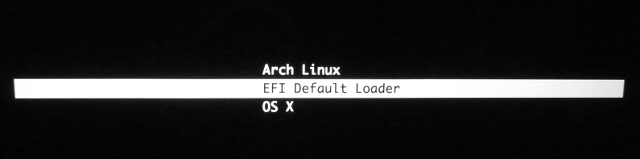
Install, creation of the default options file:
|
|
Ensure the ESP partition /dev/sda1 is mounted on the /boot of the chroot, which is from the live system point-of-view /mnt/boot
|
|
Add a new entry for our Arch Linux install:
|
|
Details:
- Paths are relative to /boot/
- options cryptdevice=/dev/sda4:vgcrypt:allow-discards root=/dev/mapper/vgcrypt-root rw
- /dev/sda4 is the encrypted partition containing the LVM physical volume
- vgcrypt is the LVM volume group
- allow-discards forward TRIM commands from encryption layer to device (security implication)
- root=/dev/mapper/vgcrypt-root is the LVM logical volume where / is mounted
- rw
Mount root device read-write on boot
More information about the options line here
Systemd-boot initial setup:
|
|
The base system install is finished!
After a reboot, the systemd-boot menu will appear, and you have to enter the password for DM-Crypt.
Wireless networking is working with the wifi-menu command. It is wise to use the package broadcom-wl-dkms instead of broadcom-wl if you use a custom kernel.
Suspend to disk (Uswsusp)
Here is a comparison of the different suspend to disk solutions. I’m going to use Uswsusp because of its support for swapfiles (in addition to swap partitions)
Installation of the uswsusp-git package:
|
|
Create a 8 GiB swapfile (I rely on uswusp compression)
|
|
Add the swapfile to /etc/fstab, tune the VM system to use it as little as possible (I have 16 GiB of ram), and swapfile activation:
|
|
|
|
|
|
The uswusp-git package post-install note gives some interesting information, which we are going to follow:
|
|
Grab the offset of the swapfile:
|
|
Edit the configuration file of suspend to disk:
|
|
Add the uresume hook after encrypt, lvm2 and before filesystems (the order really matters)
|
|
Update the initramfs image:
|
|
Tell systemd to use s2disk through systemd-hibernate (wiki entry)
|
|
Now the MacBook can be suspended to disk with the systemctl hibernate command. For suspend to ram, just close the lid, or use the systemctl suspend command.
Post-installation
Just a few notes, because many things are already documented in the dedicated 11,1 MacBook model wiki page.
Power saving
With these settings, I reach almost 09h30 of battery life, not that bad compared to Mac OS X.
Note: some people have suggested through the comments powerdown.git as a good way to improve battery life (not tested yet)
Powertop
To apply automatically optimal settings at boot (GOOD in the tunables tab)
Create a new Systemd unit:
|
|
Enable at each boot:
|
|
GPU
File /etc/modprobe.d/i915.conf
|
|
More information about the GPU power states you can see in Powertop here
Warning: you may experience some issues (lockup, no backlight, …) with these options after coming back from suspend to disk.
Intel audio chipset
/etc/modprobe.d/snd_hda_intel.conf
|
|
USB
/etc/modprobe.d/usbcore.conf
|
|
Keyboard: special keys
- Screen brightness
- Keyboard brightness
- Sound level
With xbindkeys and ~/.xbindkeysrc file:
|
|
xbindkeys must be started at the beginning of your X session (.xinitrc, …)
Note: It is possible to automatically adjust brightness using the MacBook built-in ambient light sensor, with lighter or lightum
Touchpad
There is more advanced driver for the touchpad than the default synaptics one, xf86-input-mtrack
Installation:
|
|
All directives are explained in the project README, below are my settings:
|
|
Resolved issues
I’ve faced these issues at the time of my initial Arch Linux installation, with archlinux-2015.01.01-dual.iso media and default kernel 3.17.6-1-ARCH.
You might not encounter them with more recent versions or a slightly different MacBook.
Kernel panic with linux 3.18 (wireless driver)
Note: This has been fixed in the latest version of broadcom-wl package (6.30.223.248-5)
Upgrading to linux 3.18 and using the proprietary broadcom-wl driver leads to a kernel panic for many people. It is better to stick with linux 3.17 for the time being.
Console font is partially applied
Despite a correct font configuration in /etc/vconsole.conf, the console font at the login prompt is barely readable, but was bigger at the earlier DM-Crypt password prompt.
This is because of kernel mode setting, you have to load the i915 kernel module earlier, to avoid the display flip.
Add i915 in the MODULES list of /etc/mkinitcpio.conf:
|
|
Then update your initramfs image.
High CPU usage
Note: It appears to be fixed by the Yosemite 10.10.2 update (more details in the comments)
The MacBook gets warm pretty quickly without any apparent reason, and the battery life is very low (~2h30).
A kernel thread kworker uses a lot of CPU:
|
|
And many ACPI related interrupts in powertop:
|
|
Fix: echo "disable" > /sys/firmware/acpi/interrupts/gpe66
Systemd unit to enable the command at system boot:
|
|
Activation:
|
|
ata errors
Dreadful messages appearing in dmesg
|
|
However I’ve not found so far any issue…
Default sound output through HDMI
I’m using Alsa, and by default the sound goes through the HDMI output, and not through the Intel chipset (Cirrus Logic CS4208).
To change this behavior, the option index=1,0 has to be passed to the kernel module snd-hda-intel:
|
|
Mouse cursor stuck when back from hibernation/suspend
The mouse cursor works fine when returning from suspend, but gets stuck when returning from hibernation.
Using xinput we can see that the touchpad device status becomes floating slave.
|
|
Reattaching the device with xinput –enable bcm5974 or reloading bcm5974 kernel module does the trick.
Driver bug entry, forum thread
Workaround (thanks to Chase Colman)
Create the following new systemd unit in /etc/systemd/fixtrackpad@.service
|
|
Enable it for your user (replace loic here)
|
|
The cursor is now working when back from hibernation or suspend state.
Current issues
Problems without any known workaround, at least for my MacBook model. Your mileage may vary.
No FaceTime webcam driver
Since the switch from USB to PCIe bus, no driver exist for the built-in FaceTime camera.
Thunderbolt hotplug
It is not clear if Thunderbolt adapters must be connected at boot to work.
There is also maybe issues with suspend, but without any adapters to check by myself, I can’t do anything else than asking for your feedback!
Some pointers:
- Thunderbolt and other Macbook hardware issues with Linux
- Playing with Thunderbolt under Linux on Apple hardware
- Phoronix: Apple Thunderbolt Driver Might Be Added To Linux 3.16 Kernel
- Kernel commit: Thunderbolt hotplug support over cactus Ridge controller
Fan control
Without any tuning (kernel 4.2.5), the cores temperature can rise pretty high, nearly to the critical limit of 100°c. I can hit 96°C while compiling a Linux kernel.
Dmesg extract:
|
|
To stay around a more acceptable temperature range, I’ve found that [https://github.com/dgraziotin/mbpfan](mbpfan daemon) does a pretty good job. Of course, the fan is running louder at full load.
|
|
With the default mbpfan configuration, when fully loaded the cores temperatures stay around 80°C, which is really more acceptable, and 45°C when idle.
Misc
SSD: delaying TRIM operations
Leonardo has raised in the comments an interesting point: delaying trim operations on the SSD can enhance performances. With the discard option in /etc/fstab, every time you delete a file the SSD do its housekeeping operations in real time.
It is possible to delay these SSD operations with the fstrim tool, that you will have to run periodically (and remove discard option from /etc/fstab by the way).
I have not tested yet, but here is some pointers:
i3-wm: lock the screen when returning back from suspend
I use i3lock. Here is a new Systemd Unit that starts i3lock just before going to suspend:
|
|
Activation:
|
|
Firefox and Retina display
Just install the AutoDiDPI extension to have fonts automatically scaled to something readable.